In this article we using motherboard " ECS" type := P4M800PRO-M3 for sample.
Step 1. Installation of the CPU and CPU Cooler.
Step 2. Installation of Memory.
Step 3. Installation of Motherboard.
Step 4. Installation of IDE/SATA/FDD devices.
Step 5. Case Preparation and Installation of Power Supply.
Step 6. Installation of an Expansion Card.
Step 7. Connecting Cables and Power Connectors.
Step 8. Connecting the Front Panel Header.
Step 9. Connecting Ports on Case.
** The sequence of installation may differ depending on the of case and devices used **
*** To prevent component damage, do not power up the system until the
installation is complete ***
Step 1. Installation of the CPU and CPU Cooler.
1.1. Installation of the Intel Pentium 4 LGA775 CPU.
----1.1.A. Once the lever is lifted from its position, apply an ever layer of thermal grease on the surface of the
CPU.
----1.1.B. A gold colored triangle is marked one edge of the CPU. Please align this edgewith the indented edge of the
CPU socket. Gently place the CPU into position, making sure that the CPU pins fit perfectly into their holes.
1.2. Installation of the CPU Cooler.
src="http://i207.photobucket.com/albums/bb298/ybml/B.jpg" border="2" alt="CPU Cooler" width="120" height="85"
/>
----1.2.A. Before installing the CPU Cooler, please first add an even layer of thermal grease on the surface of the
CPU. Install all the CPU cooler components .
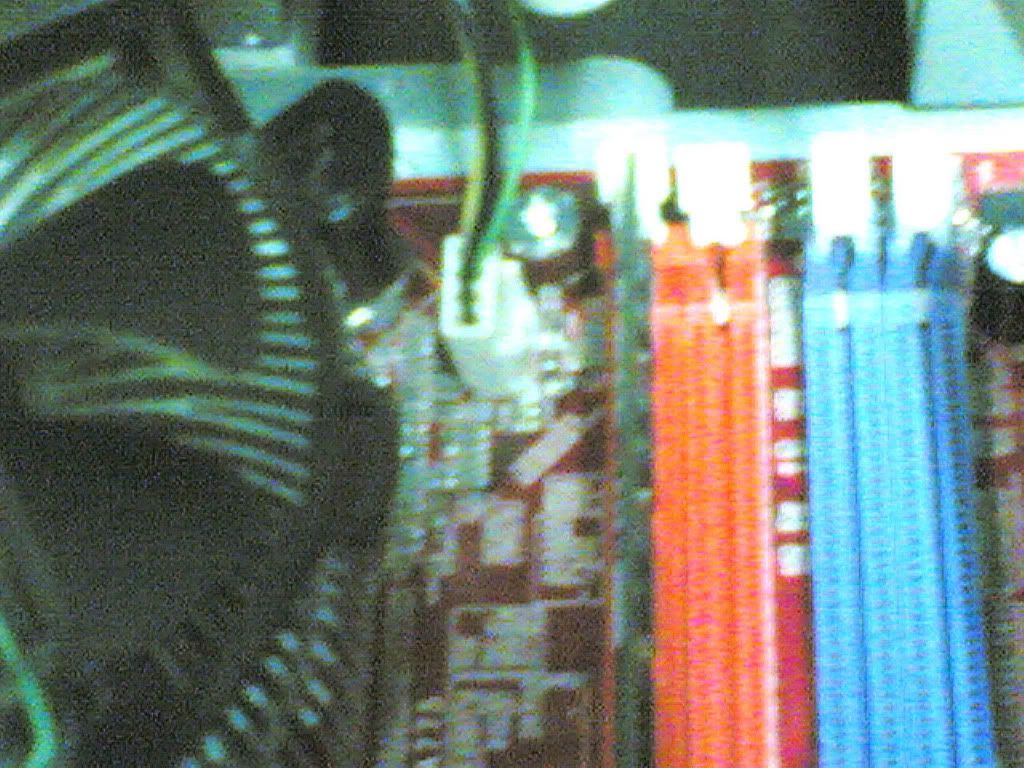
border="2" alt="Connect Fan" width="119" height="88" />
----1.2.B. Please connect the CPU cooler power connector to the CPU_FAN connector located on the motherboard so that
the CPU cooler can function properly to avoid CPU overheating.
Step 2. Installation of Memory.
src="http://i207.photobucket.com/albums/bb298/ybml/C.jpg" border="2" alt="install memory" width="226" height="169"
/>
----2.1. Please make sure that the memory used is supported by the motherboard.
----2.2. Memory only can be placed in one direction due to an indent located on the memory module. Please unfasten the
clips located on each side of the memory slot. Hold the memory module on either side and completely insert the module
into its slot.
----2.3. The clips on the memory slot will refasten once the memory is properly installed.
Step 3. Installation of Motherboard.
src="http://i207.photobucket.com/albums/bb298/ybml/A.jpg" border="2" alt="install mainboard" width="226" height="169"
/>
----3.1. Please remove one side of the case.
----3.2. Remove the I/O plate from the back of the case and replace with the provided motherboard I/O plate.
----3.3. Place the motherboard within the case by positioning it into its I/O plate and secure the I/O plate to the
case using screws.
If the I/O plate of the case does not fit your motherboard, please remove the I/O plate and replace it with the one
provided with the motherboard.
Step 4. Installation of IDE/SATA/FDD devices.
src="http://i207.photobucket.com/albums/bb298/ybml/F.jpg" border="2" alt="install cd" width="171" height="128"
/>
----4.1. Installation of Optical Drives-DVD-ROM/CD-ROM.
-------4.1.1. Please remove the front cover of the case.
-------4.1.2. Please remove the 5.25" plate from the case.
-------4.1.3. Place the optical drive into the 5.25" slot and secure the device using screws.
----4.2. Installation of the Floppy Disk Drive.
-------4.2.1. Place the FDD into its slot and secure with screws.
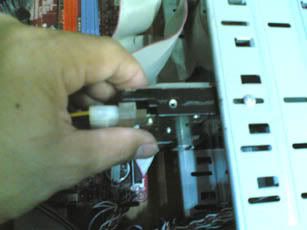
----4.3. Installation of IDE and SATA Hard Drives
border="2" alt="install Hardisk" width="178" height="132" />
-------4.3.1. Place the hard drive in its position within the case and secure the device using screws.
Step 5. Case Preparation and Installation of Power Supply.
border="2" alt="Power install" width="167" height="125" />
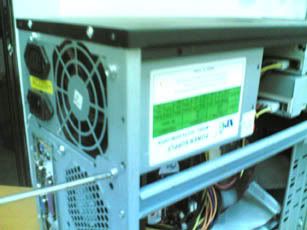
----5.1. Please first remove both sides and the lid of the case in order to install the power supply may differ
depending on the type of case used.
----5.2. Once the power supply is placed in the case. please use screws to secure the power supply in place.
Due to power concerns, it is recommended that a power supply delivering large amount of power be used ( at least 300W
or grater ). If an insufficient power supply is used, the result may be an unstable system or a system that is
unstable to boot.
Step 6. Installation of an Expansion Card.
border="2" alt="Expansion" width="228" height="182" />
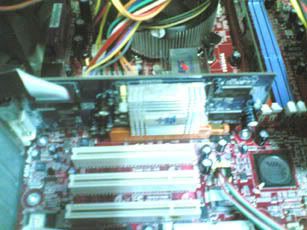
----6.1. Prior to installation, please verify if the motherboard supports the specifications of the expansion card eg.
PCI Express, PCI etc.
----6.2. Please remove the metal located on the slot and then insert the expansion card into the slot.
----6.3. Once the expansion card is securely positioned into the slot, please return the screw back to its position.
please make sure that the expansion card is fully inserted into its slot.
Step 7. Connecting Cables and Power Connector.
----7.1. Connect all cables : the optical drive to its IDE cable and audio cable, the IDE hard drive to its IDE cable,
the SATA hard drive to its SATA cable and FDD to its FDD cable.
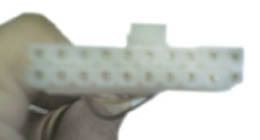
border="2" alt="power connector" width="137" height="73" />
--ATX power connector : connects with the ATX connector on the motherboard.

alt="atx12" width="133" height="91" />
--ATX_12V power connector :
connects with the ATX_12V connector on the motherboard.
alt="IDE" width="132" height="97" />
--IDE power connector : connects to the IDE device.
alt="fdd" width="132" height="94" />
--FDD power connector : connects to the FDD device.
--SATA power connector : connects to the SATA device.
----7.2. Please connect all the power supply connectors to their respective devices (connector shown above).
----7.3. Replace the front cover of the case and then secure with screws.
Notes :
1. Cables, power connectors and audio connectors are designed so that they can only be inserted in one direction.
(usually the first position of the power cables are labeled red in color.)
2. It is recommended that the SATA hard drives be connect to SATA connectors, and the optical devices to IDE
connectors, for better system efficiency.
3. One IDE connector can connect two IDE devices. Prior to installation, please check the IDE device setting (Master
and Slave).
4. When two or more IDE/SATA hard drives are installed, please enter BIOS and set the boot sequence.
Step 8. Connecting the Front Panel Header.
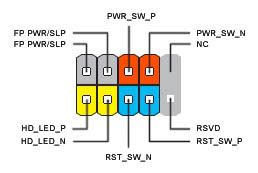
Attach the front panel header ( differs appending on the case design, consisting of power indicator, hard drive
indicator, speakers, system power, etc) from the case to the front panel header (PANEL1) on the motherboard.
border="2" alt="panel" width="278" height="186" />
FP PWR/SLP : Message/Power/Sleep LED.
PWR_SW_P/N : Power Switch.
HD_LED_P/N : IDE Hard Drive Activity LED
RST_SW-P/N : Reset Switch
Step 9. Connecting Ports on Case.
Display of Rear Panel of Case
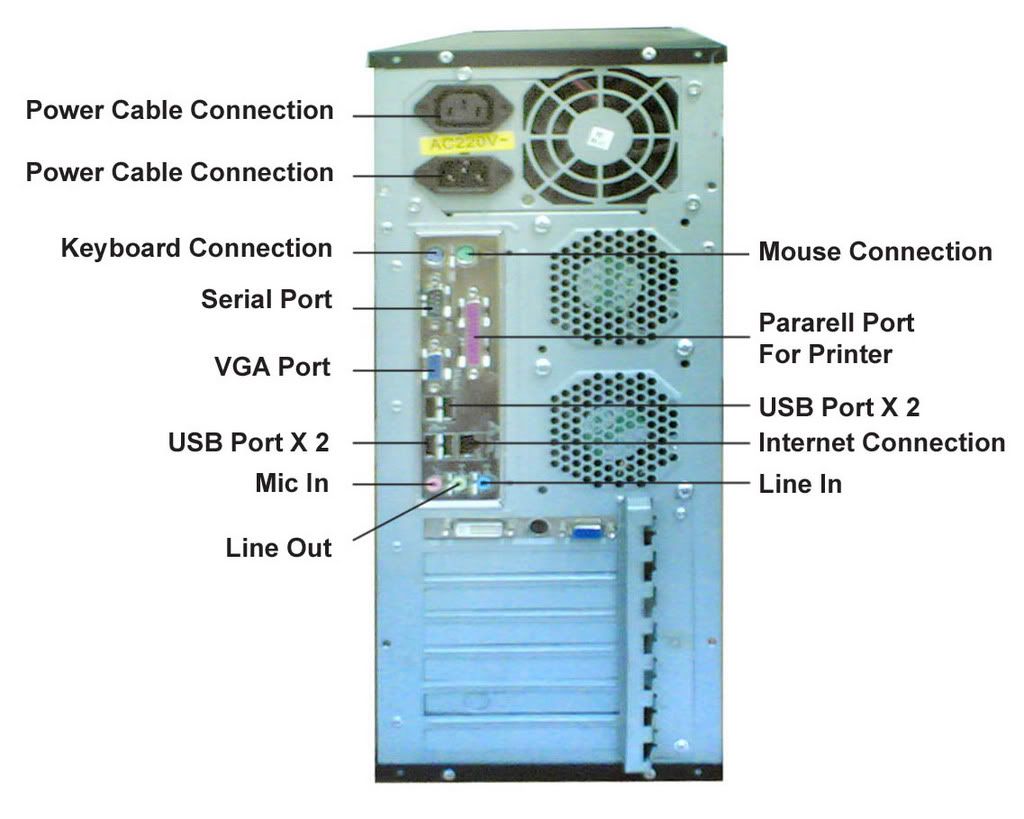
alt="port" width="400" height="319" />
The rear panel may not look the same as the picture shows, it varies between motherboards.
Once the steps above have been completed, please connect the peripherals such as the keyboard, mouse, monitor, ets.
Then, connect the power and turn on the system. Please install all the required software.
Please install all peripheral devices.


No comments:
Post a Comment